How to install mods on a Palworld server
Install a traditional Palworld .pak mod in Pal/Content/Paks, match client-required files on every PC, and restart safely. Palworld 1.0 also has a Windows-only official loader for Workshop packages marked for dedicated servers.
TL;DR: For a plain .pak mod, upload it to Pal/Content/Paks/ on your
server and restart. If the mod needs client files, every PC player installs the
same ones, and console and Microsoft Store players are locked out. Pocketpair's
official Workshop loader only runs on the Windows dedicated server.
A plain .pak mod can come as more than one file. Upload every file it ships
with through the file manager or SFTP, check the mod page to see whether players need it too, then
restart. Back up first, because Pocketpair warns mods can crash the server or
corrupt saves.
Server only, or client too?
Check this on the mod page before you install anything. It decides who can join.
| Mod type | Install on the server | Install on each PC | Console players |
|---|---|---|---|
| Server only (the mod page says so) | Yes | No | Can still join |
| Client and server (new items, gameplay) | Yes | Yes, the same release | Locked out |
| Client only (graphics, UI, minimap) | No | Only the player who wants it | Not affected |
The mod author's page is the final word. If it doesn't say, assume every PC player needs it and test with one friend first.
Install a .pak mod on berrybyte
Standard berrybyte Palworld servers run Pocketpair's Linux dedicated server. These steps use the dashboard's Files page. For big uploads, use SFTP instead.
Back up the world
Take a backup first. If a mod breaks the save, you can roll back.
Download the mod
Get the .pak file from the mod's page on Nexus Mods
or the author's own page. Check that it names your current Palworld version and says it works
on a dedicated server.
Open Files
Open your server in the dashboard and click Files in the sidebar. See manage files for the basics.
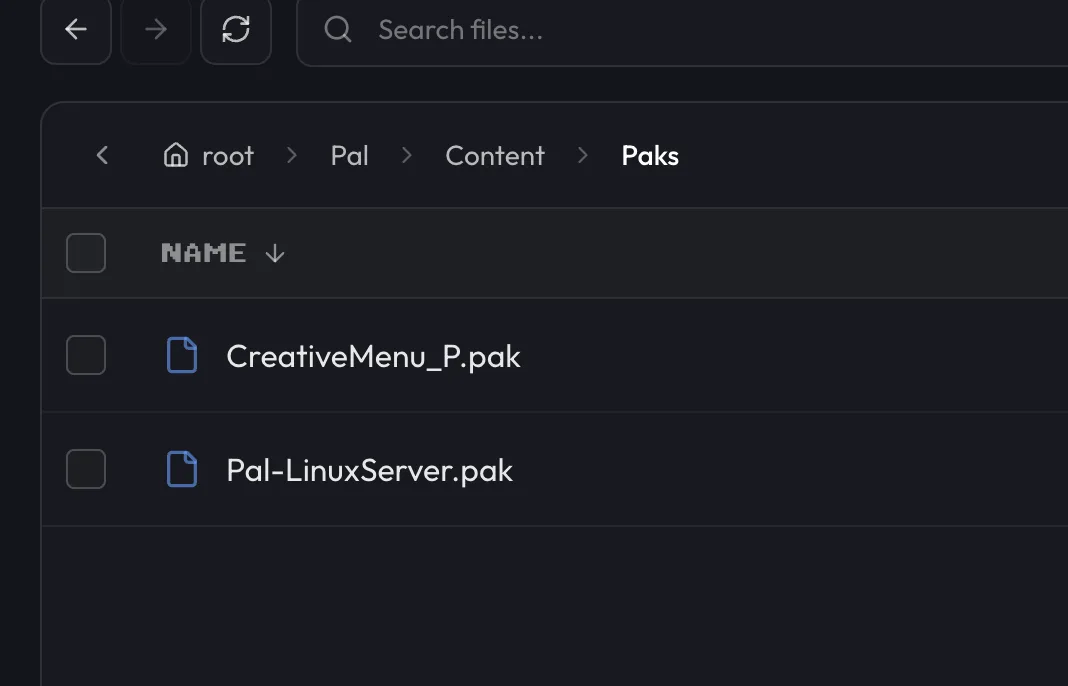
Upload to Pal/Content/Paks
Open Pal, then Content, then Paks. Drag the mod's files onto the list to upload them. Leave
Pal-LinuxServer.pak alone, because that file is the game itself.
Give players the same file if needed
If the mod needs client files, each PC player installs the same release in their own game, the way the mod page says.
Restart the server
Restart from the sidebar or Overview so the mod loads. See start, stop & restart for the power controls.
Some mods change settings the server already has. To change those, use Game settings in the dashboard sidebar. Values there are applied on every start.
The official Workshop loader (Windows server only)
Palworld 1.0 has an official way to load Workshop mods on a dedicated server. Pocketpair's mod guide says server-side mods currently work only on the Windows edition of the server. They don't run on the Linux server, which is what a standard berrybyte Palworld server uses.
Plain .pak uploads to Pal/Content/Paks aren't part of this loader, so the
steps above are separate.
If you run the Windows server yourself, here is the short version of Pocketpair's steps:
Check the mod is made for servers
Open the mod's Info.json. Its install rule must include "IsServer": true. If it doesn't, the
mod isn't made for servers.
Copy it into Mods/Workshop
Put each mod in its own folder inside Mods\Workshop\, next to PalServer.exe. Info.json
must sit right inside that folder.
Turn mods on
Start the server once so it creates Mods\PalModSettings.ini. Set bGlobalEnableMod=true,
then add one ActiveModList= line per mod. Use the PackageName from Info.json, not the
folder name.
Restart
Restart the server. It installs each mod by the rules in its Info.json.
To turn a mod off, remove its line from ActiveModList and restart. The
-NoMods launch option turns every mod off at once.
What about UE4SS and Lua mods?
In Pocketpair's guide, UE4SS, Lua, and PalSchema mods go through the same
Windows-only loader, under Mods\NativeMods\UE4SS. The guide gives no Linux
route for them, so they won't run on a standard berrybyte Palworld server, which
uses the Linux build. If a mod
you want needs one of them, ask us in a
support ticket before you buy.
On your own PC
Players who need client files install them in their own game. Steam Workshop
mods land in
C:\Program Files (x86)\Steam\steamapps\workshop\content\1623730 by default,
per Pocketpair's guide. For a .pak mod, follow the folder the mod page names.
Mods broke after an update
A Palworld patch can break a mod until its author updates it. On berrybyte, Auto update on start in Game settings can update the server when it restarts. If the server crashes or players can't join after a patch, do this:
- Remove the mod files you added, or move them out of
Paks. - Restart and check the vanilla server starts and players can join.
- Wait for each mod's release for the new version, then add them back one at a time.
For update steps, see update your Palworld server. For other crash causes, see fix server crashes.
Why won't my mods load?
Mods aren't loading after installation
The .pak file is usually in the wrong folder or built for another Palworld version. Check
that it sits in the folder the mod page names, usually Pal/Content/Paks/. Then check the mod
page lists your server's current version.
The mod needs UE4SS or the Workshop loader
Pocketpair's server mod loader only runs on the Windows server. A mod that needs it won't load
on a Linux server, so pick a plain .pak version if the author offers one.
Players can't join the modded server
This is almost always a mismatch between the server's mods and a player's game. Every PC player needs the same release of any client-required mod. Console and Microsoft Store players can't join a server that needs one.
Server crashes after adding mods
Mods that conflict and broken downloads are the usual causes. Remove mods one at a time, restarting after each, until the crashes stop. Download any file you suspect again.
A mod's features aren't showing up in-game
Client-only mods do nothing on a server, and some server mods need extra setup. Read the mod's own instructions before you decide the install failed.
Next steps
Pick your mods from the best Palworld server mods list, and check each one's server and console notes. If a mod still won't behave, open a support ticket with the mod name.
Frequently asked questions
Where do Palworld mods get installed on a server?
A plain .pak mod goes in the server's Pal/Content/Paks/ folder, unless the mod page names a different one. Workshop packages use Pocketpair's official loader instead, which only runs on the Windows dedicated server, so they go in a Mods/Workshop/ folder next to PalServer.exe.
Why can't my friends join my modded Palworld server?
If a mod needs files on each player's PC, every PC player must install the same release as the server. A mismatch usually stops that player from joining. Mods made to run only on the server don't need this.
Why does my Palworld server crash after installing mods?
Usually a mod that doesn't match your Palworld version, two mods that conflict, or a broken download. Remove mods one at a time and restart after each until the crashes stop. Pocketpair warns that mods can crash the server or corrupt save data, so back up first.
Where do I find safe Palworld mods to download?
Nexus Mods, Thunderstore, and the Palworld Steam Workshop are the main places to find Palworld mods. Pick one whose page names your current Palworld version and says it works on a dedicated server. Workshop packages need Pocketpair's loader, which only runs on the Windows dedicated server.
Will single-player mods interfere with a vanilla server?
It depends on the server's bAllowClientMod setting. Pocketpair describes it as allowing players with mods enabled to join. If a vanilla server blocks you, turn your mods off before you join.
Can console players join a modded Palworld server?
Console players can't add mods to their game, so they can join only if every mod on the server is made to run on the server alone. Any mod that needs matching files on each player's PC locks out console and Microsoft Store players, so only PC players who install the same files can join.